Strap in, kids - this is going to be another long post. There’s just so much to talk about!
In the world of homelabbing (and even in some enterprise spaces), Proxmox has really taken the world by storm over the past decade. With Broadcom taking over VMware (and killing the free tier of ESXi), Proxmox has stepped in and taken over most of the market share for the virtualization needs of homelabbers and SMBs alike.
I, personally, have been running Proxmox in my lab since early 2021 (was previously running vanilla KVM on CentOS, and was using ESXi’s free tier before then) and I’ve loved every second of it so far. Shared storage through NFS or iSCSI, native ZFS on local disks, point-and-click migration of virtual machines between hosts, and (closely related to the topic du jour) a fairly robust and complete API, ripe for hacking.
Say it with me, kids - “cattle, not pets”
If you’ve seen any part of this blog in the past, you’ll know that I’m a big fan of the “cattle, not pets” mentality when it comes to computing. In short, I believe that the only unique thing about any compute device should be the specific workload it’s running and the data required for that workload - everything else should be replacable, up to and including the actual compute resources themselves. In an ideal scenario, if you have a problem with a particular virtual machine or piece of hardware, you should be able to simply delete the VM (or power off the hardware), deploy your workload to another suitable VM/machine, and have lost nothing in the process but a few minutes worth of time.
For instance, take this very website. The source code is simple markdown stored on a git server in my homelab. This source code is built into a docker image, from which a container is deployed on a VPS somewhere. If this VPS was to suddenly cease to exist, I could simply throw the docker image onto another VPS, run it, update the DNS entry for this website, and all would be fine and dandy. This is the power of the compute layer being, in a sense, ‘disposable’.
In a lot of cases, however, the compute layer in a homelab is treated more as a pet than as cattle. There’s a lot of one-time configuration that needs to occur (network setup, datastore provisioning, etc), and if you’re not doing these kinds of setups routinely then the exact details of how any particular thing was configured could be lost to time (even with meticulous documentation, human brains are still fallible and can be prone to forgetting/misremembering).
Wouldn’t it be cool if we could treat our hypervisor layer as cattle in the same way as a lot of our other resources - declare how you want things to look, run a single command, and have everything just… magically set up properly? This way we could keep these declarations under source control, and when we want to modify something (change an IP address, set up a new VM or ten, etc) we just change a couple of lines and re-run our automation.
The Tale of Tofu
Turns out, thanks to that Proxmox API I mentioned earlier (and an awesome open-source community ready and willing to hack on things!), we have multiple ways we can accomplish this task! (…well, sort of. More on that in a minute.)
Ansible has a couple of modules available in its Community collection for managing virtual machines, LXC containers, and their related components (NICs, disks, etc). But what if we want to manage things like Proxmox users, bridge/VLAN interfaces, and even things like DNS and hostfile entries?
Terraform to the rescue!
In case you’re unfamiliar, Terraform is a technology developed by Hashicorp which allows you to define how you want your infrastructure to look via simple YAML files (hence Infrastructure as Code [IaC]). It’s in the same realm as Ansible, and the two tools can do similar things. The way I like to look at it - you first provision your actual infrastructure using Terraform, then you configure that infrastructure’s software and data using Ansible. You can (and should!) use both!
Please note - by no means am I a Terraform master; I only started digging deeply into writing Terraform very recently, and before that point was only modifying Terraform files written by others. This will not be a Terraform basics tutorial, though I may try to write one of those in the future once I have a better grasp on how everything works.
Also, slight nitpick - I’m actually using OpenTofu instead of Terraform, but for all intents and purposes OT is feature-paired with Terraform and (for now) you can use either interchangably. If you see me referencing tofu throughout this post, this is why.
‘Providing’ the keys to the kingdom
Terraform gets its functionality through the use of providers, which are basically translation layers between Terraform and a particular technology which you want to manage. There are literally hundreds and hundreds of providers for Terraform, for managing everything from cloud resources (including AWS, GCP, and Azure), to Docker containers and Kubernetes clusters, to managing DNS through various providers (including porkbun, my preferred registrar of choice), and even filesystems!
The provider we’re interested in today is bpg/terraform, which is this one written by Pavel Boldyrev. There’s another Proxmox provider which is older and a bit less feature-complete written by Telmate, but since that provider is less feature-rich we’re going to ignore it in favor of the one from bpg.
The requirements
In order to manage Proxmox through Terraform, you’ll first need a Proxmox server to manage. As much as I wish Terraform was as awesome as to just pop a Proxmox server out of thin air, unfortunately we do need to start with some infrastructure in place.
My primary homelab server is beefy enough to where I can actually run Proxmox inside of a VM, and then run virtual machines inside of that VM. It’s called nested virtualization, and Proxmox supports it without any additional configuration necessary in my case.
Technology is SO COOL.
I’ve spun up a virtual machine with the name pve01 and have dedicated an entire /24 subnet specifically to virtual machines running inside of this environment (172.16.100.0/24). On the host, I’ve set the VM to use three network bridges - one for the management network, and two dedicated bridges which no other VM on my host is using - one 1GB port for VM network access, and one 10GB port so the virtualized hypervisor can reach my NAS for VM disk access. This is all set up so that this VM is a pristine playground with which I can play around and break things without affecting my “production” traffic elsewhere on the hypervisor.
Getting started
Enough jabbering, let’s actually write some code.
Again, I am by no means a Terraform expert, and I may be glossing over some basics of how Terraform works. Caveat imperator, etc.
First, we need to actually install Terraform. If you’re on Windows or Mac, you can download and install Terraform from Hashicorp’s website. If you’re on Linux, you can do that using your distro’s package manager (in my case, because I’m running Gentoo, I had to run sudo emerge -a terraformsudo emerge -a opentofu instead. Again, if you want to use Hashicorp’s version of Terraform, every time you see tofu, just squint until it turns into terraform).
From there you can check and see if Terraform was installed properly:
1 | $ tofu --version |
Cool. Now, we need to start telling Terraform what we want it to do. Let’s begin by informing Terraform of our intentions to manage Proxmox resources using the provider we mentioned earlier.
Terraform filenames usually end with the .tf suffix, and by convention the primary file used when getting started with terraform is called main.tf. So, ensure you’re in an empty directory just being used for this purpose (since Terraform creates a bunch of extra files when we run commands - more on that later), and let’s start by creating this file with the following contents:
1 | $ cat main.tf |
Most of the above is self-explanatory, but in general:
- The
terraform {}block is what use to tell Terraform to use thebpg/proxmoxprovider, and pin it to a version (optionally) - The
provider "proxmox" {}block is provider-specific information, which generally contains configuration information. In this case, we’re passing it connection credentials to use to connect to our Proxmox server.- Providing these credentials in plaintext is a very bad idea, but this is just for initial demonstration purposes. I’ll show a couple of better ways to provide these credentials in the next post.
Next, we need to initialize this directory as being for a Terraform project. We can do this by running terraform init in the same directory that has the main.tf file in it. Let’s do this now:
1 | $ tofu init |
Terraform tells us that this project has been successfully initialized!
The output mentions that a file has been created on our behalf after running this command. Sure enough, if we list the contents of our current directory we see a file and a directory have been created:
1 | $ ls -a |
Declaring some resources
The output of the terraform init command tells us that we should try running terraform plan. Let’s do that next.
1 | $ tofu plan |
This makes sense, since we haven’t actually told Terraform to create any resources yet. Let’s use Terraform to create a virtual machine!
If you know nothing about the general layout of how Terraform works (as I didn’t when I first started digging into this), the provider page for this provider helpfully provides some sample code to help you get started: https://registry.terraform.io/providers/bpg/proxmox/latest/docs/
Using this as a base, let’s modify our main.tf file to include provisions to download a cloud image for Rocky Linux, and then provision a VM based on that cloud image. (You could clone a VM from an existing template, but in our case the Proxmox environment is a fresh install and has no templates on it yet.)
First, let’s tell Terraform to download the cloud image and where to put it:
1 | resource "proxmox_virtual_environment_download_file" "rocky_cloud_image" { |
This is all pretty self-explanatory. We create a resource of type proxmox_virtual_environment_download_file (it’s a weird name, but it makes sense - Proxmox’s full name is Proxmox Virtual Environment, and this resource is a downloaded file - hence the name), and we’re naming this resource rocky_cloud_image. We then tell Proxmox to download a Rocky 9 image to the local datastore on node pve01.
In this particular case, pay attention to the file_name parameter. We are directing Terraform to tell Proxmox that this will be a file of the content type iso (which is required to use this image as the basis for VM creation). Rocky Linux provides their cloud images as bare KVM disks with the extension of .qcow2. If you remove the file_name parameter and try to use this Terraform code to download the image, Terraform with throw an error at you - because .qcow2 is not a valid iso extension. See below:
1 | proxmox_virtual_environment_download_file.rocky_cloud_image: Creating... |
So all we’re doing with the file_name parameter is renaming the file so that Proxmox will accept it.
Next, let’s actually create the virtual machine resource. Add the following to main.tf:
1 | resource "proxmox_virtual_environment_vm" "rocky_vm" { |
What’s all of this, then? Let’s break it down a little bit.
First, according to the declaration, we’re creating a resource of type proxmox_virtual_environment_vm named rocky_vm. We give it a name, tell Proxmox on what node the VM should live, and set a particular variable needed when the QEMU guest agent isn’t installed (which, on the default Rocky cloud image, it is not).
The initialization {} block is interesting - Proxmox has full support for cloud-init baked right in, and we can use this functionality to pre-define various important parts of the VM’s configuration, before the VM even boots for the first time! This is fantastic for quickly defining a bunch of virtual machines at once. We’ll get to that later. In this case, we’re defining the IP address, gateway, and username/password to be used when logging into this machine for the first time.
After that, we have the declaration of the network device, and which bridge to attach it to. In my case, VM traffic will travel over vmbr1, which is what I’ve selected. There’s also a declaration of a serial_device {}, which most cloud images expect to have attached (and some, like Debian, will straight-up kernel panic if one is not attached).
Next, we have the definition for creation of the virtual disk. You can see various parameters being set, such as the disk size (in gigabytes), the datastore to store the disk on, the interface to use, etc. But what’s this file_id line? Since we’re creating this VM from a cloud image, this line tells Proxmox which cloud image to use. We can see that it’s set to proxmox_virtual_environment_download_file.rocky_cloud_image.id, which should look a little bit familiar - we just declared a resource of type proxmox_virtual_environment_download_file with the name rocky_cloud_image! So, really all this is doing, is using the output from the creation of that resource (the disk’s ID) as a variable. We’ll get more into variables in the next post - at this point, all you need to know is that this is referencing the disk file we’re going to download.
That’s all we’re going to specify in this particular declaration. There’s tons more we could specify, including CPU types and core counts, memory capacities, and even the keyboard layout to use in the virtual machine!
Watch the magic!
For now, though, we want Terraform to actually create these resources. So, with these changes to our main.tf file, let’s run the terraform plan command again (my output is going to look a little bit different because my storage is in a different place than in local-lvm, but your output should look similar)!
Output slightly trimmed for length.
1 | $ tofu plan |
So what Terraform has done here, is taken the plan that we’ve written and compared it to its own internal state of how things are currently configured on resources it manages. Since these are the first resources we’re creating to be managed by Terraform, there’s nothing in the state - so anything we do is an ‘addition’.
Of note, Terraform also creates a local file called terraform.tfstate, which it uses to keep track of all resources under its control. Terraform state files are of extreme importance, since this is the source of truth of how Terraform views the state of your resources - if this file gets corrupted or deleted and you run Terraform against existing infrastructure, you could run into an issues where all of your resources get deleted and re-created (which, depending on which resources these are, could be a very bad thing)! We’ll get into state file management in a future blog post - including using an S3 bucket as a location for this state file to live. For these initial tests, this file living locally is okay.
If the plan looks good to you (it looks good to me!), you can now run terraform apply. If you have the Proxmox web interface open, you can watch the VM appear before your very eyes, without you needing to click on a single button!
1 | $ tofu apply |
Cool, Terraform seems to think that everything has gone according to plan! Note that Terraform requires you to explicitly type yes before it makes any changes to infrastructure - as a final “are you sure you want to do this?” type of check.
Okay, let’s head into the Proxmox web interface and see what we have.
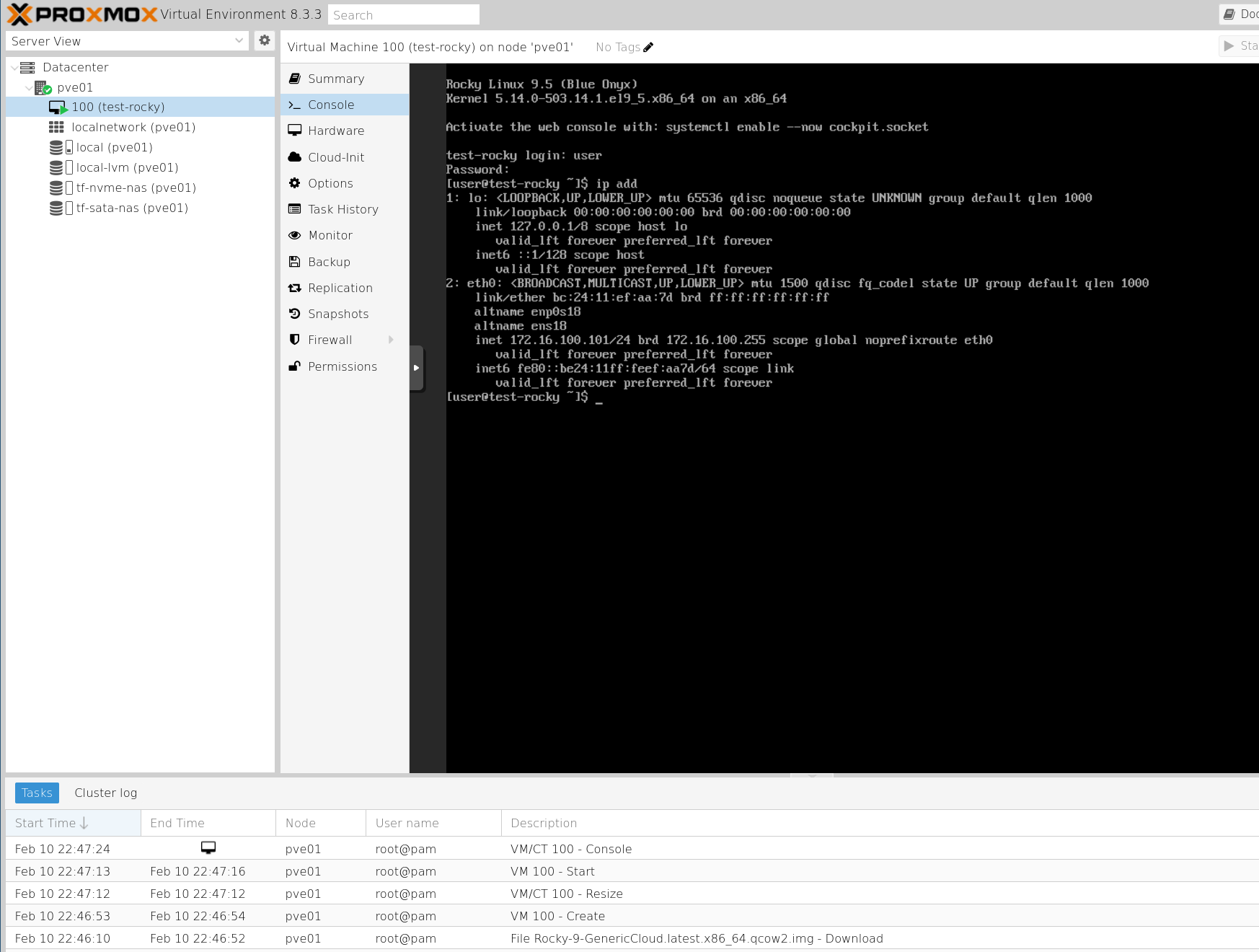
Sure enough, there’s a VM called rocky-test created! If we go to the console and log in (with only 1 CPU and 512 MB of RAM by default, the first boot is going to take a while - be patient!), we can also see that Terraform applied the cloud-init information we asked for - the username/password, and the IP address!
Cleaning up after ourselves
In an effort to keep our environment clean, we’re going to destroy this VM and delete the downloaded image from our Proxmox environment.
This is as simple as running terraform destroy, as seen from the below output:
1 | $ tofu destroy |
Again, you can see that Terraform requires us to type “yes” before it performs any destructive action - including tearing down the whole environment. And if we go into our Proxmox webUI, you can see that the virtual machine has been removed, and the disk image we downloaded earlier has also been deleted, leaving us with a nice clean slate for our next experiments!
Conclusion and next steps
As you’ve seen, we’ve successfully used Terraform to provision a virtual machine within our Proxmox environment, but we’re far from done with this topic. What if you want to provision multiple virtual machines at once? Sure, you could manually copy and paste the same resource declaration over and over, but this violates the integral Terraform principle of DRY (Don’t Repeat Yourself). What if we want to configure Proxmox users/passwords, or configure bridges used by virtual machines? And what about the state file, how do we tell Terraform to store it in a safer location than locally on-disk?
You’ll have to tune into the next post of this series to find out. :)
Leave a comment below if you learned something!